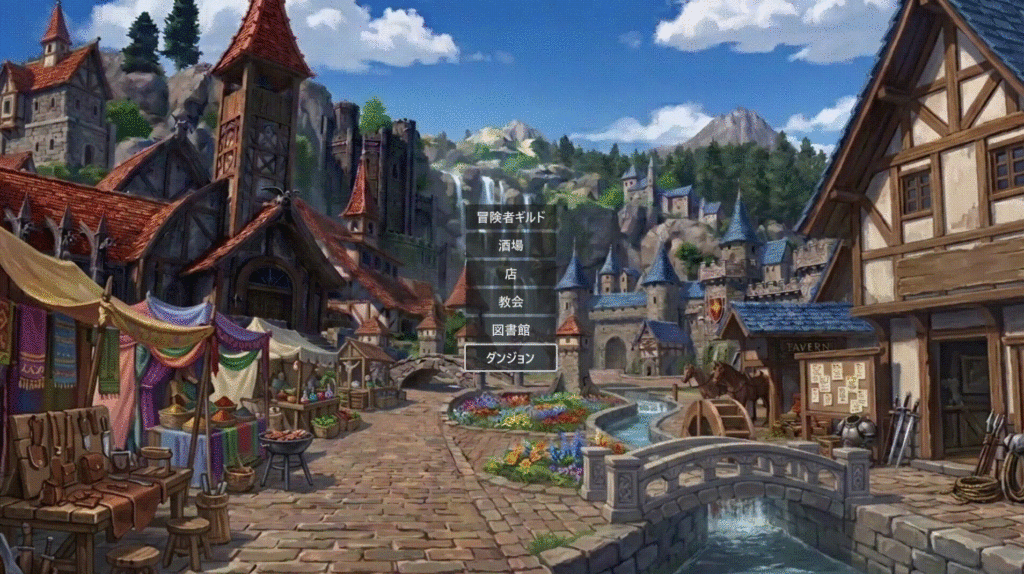
今回はメニュー画面の一部を実装していきます。メニュー画面とは、アイテムを使ったり設定を変えたりするものです。この記事でお伝えするのは以下の通りです。(上記画像をクリックすると、今回実装する内容がわかります)
- メニュー画面準備
- 設定 (言語切り替え / 画面サイズ)
- パーティメンバーの表示
前回は、冒険者ギルドの実装を行いました。今まで作成してきたのは以下の通りです。詳しくは過去記事をご確認ください。
- ダンジョンの壁と床の設置
- プレイヤーの現在座標とその表記
- イベントメッセージの表示
- 敵とのランダムエンカウント
- ダンジョンの扉と階段の設置
- ダンジョンのB1から街に戻る処理
- ダンジョンのB1からB2に降りる処理
- ダンジョン画像の置き換え
- 座標データ管理 (階段)
- 敵データ作成 (JSON)
- 敵の複数体ランダム出現処理
- 敵の名前切り替え処理 (英語 / 日本語)
- 街の各場所のメニュー表示
- 街のBGM処理
- オートマッピング
- キャラクターの作成
- 冒険者ギルドの実装
メニュー画面作成準備
メニュー画面とは、アイテムを選んだりステータスを見たりするものです。街やダンジョンで、セレクトボタン (ui_select) を押すとメニューが開きます。メニューが開いた状態で、魔法やスキルなどを何も選ばずキャンセルボタン (ui_cancel) を押すとメニューが閉じるものとします。
メニュー用ノード構成
- MenuWindow (Control)
- MainMenuLayout (PanelContainer)
- MainHBox (HBoxContainer)
- LMainMenuLayout (VBoxContainer)
- MessageContainer (PanelContainer)
- MenuMessageLabel (Label)
- PartyLayout (VBoxContainer)
- FrontRowPartyMember (HBoxContainer)
- PartyMember1 (PanelContainer)
- MemberHBox1 (HBoxContainer)
- Name (Label)
- LPartyMember1 (VBoxContainer)
- Lv (Label)
- Appearance (TextureRect)
- RPartyMember1 (GridContainer)
- Class (Label)
- HPLabel (Label)
- HPBar (ProgressBar)
- MPLabel (Label)
- MPBar (ProgressBar)
- MemberHBox1 (HBoxContainer)
- PartyMember2 (PanelContainer)
- (PartyMember1 と同じ)
- PartyMember3 (PanelContainer)
- (PartyMember1 と同じ)
- PartyMember1 (PanelContainer)
- BackRowPartyMember (HBoxContainer)
- PartyMember4 (PanelContainer)
- (PartyMember1 と同じ)
- PartyMember5 (PanelContainer)
- (PartyMember1 と同じ)
- PartyMember6 (PanelContainer)
- (PartyMember1 と同じ)
- RMainMenuLayout (VBoxContainer)
- MenuList (PanelContainer)
- ButtonList (VBoxContainer)
- Items (Button)
- Spells (Button)
- Skills (Button)
- Equipment (Button)
- Formation (Button)
- Status (Button)
- Tactics (Button)
- Config (Button)
- Save (Button)
- ButtonList (VBoxContainer)
- GoldWindow (PanelContainer)
- GoldHBox (HBoxContainer)
- GoldValue (Label)
- GoldLabel (Label)
- GoldHBox (HBoxContainer)
- MenuList (PanelContainer)
- PartyMember4 (PanelContainer)
- FrontRowPartyMember (HBoxContainer)
- MessageContainer (PanelContainer)
- LMainMenuLayout (VBoxContainer)
- MainHBox (HBoxContainer)
- MainMenuLayout (PanelContainer)
| MenuWindow (Control) | メニューウィンドウ用。CanvasLayer の直下に作成 |
| MainMenu (PanelContainer) | メニュー全体用。Theme Overrides -> Styles -> Panel に StyleBoxFlat で背景色を青色に設定 |
| MainHBox (HBoxContainer) | メインメニュー画面を大きく左右に分割するためのコンテナ。Alignment を Center にしておく。 |
| LMainMenuLayout (VBoxContainer | メインメニュー左側:メッセージとパーティ。 |
| MenuMessageLabel (Label) | メッセージ表示。上部に配置 |
| PartyLayout (VBoxContainer) | 前衛・後衛を縦に並べるコンテナ。size_flags_vertical = SIZE_EXPAND_FILL。Alignment を Center にしておく。 |
| FrontRowPartyMember (HBoxContainer) | 前衛3名を横並び。size_flags_vertical = SIZE_EXPAND_FILL |
| PartyMember1 (PanelContainer) | 枠線を薄い紺色の StyleBoxFlat で表現。size_flags_horizontal = SIZE_EXPAND_FILL) |
| MemberHBox1 (HBoxContainer) | メンバー内の左右分割 |
| Name (Label) | 名前。名前は横幅が広いので左右枠いっぱい使用。Theme Overrides -> Font Sizes -> Font Size でセット推奨 |
| LPartyMember1 (VBoxContainer) | 左:基本情報 |
| Lv (Label) | レベル Theme Overrides -> Font Sizes -> Font Size でセット推奨 |
| Appearance (Label) | 見た目画像。expand_mode = EXPAND_IGNORE_SIZE に設定してサイズ固定 |
| RPartyMember1 (GridContainer) | 右:ステータス |
| Class (Label) | 職業 (クラス) Theme Overrides -> Font Sizes -> Font Size でセット推奨 |
| HP (Label) | “HP 120/120” のようなテキスト。 Theme Overrides -> Font Sizes -> Font Size でセット推奨 |
| HPBar (ProgressBar) | 緑色のバー。show_percentage = false |
| MP (Label) | “MP 63/63” のようなテキスト。 Theme Overrides -> Font Sizes -> Font Size でセット推奨 |
| MPBar (ProgressBar) | 赤色のバー。show_percentage = false |
| PartyMember2 ~ 3 | (PartyMember1 と同じ。子ノードのコピペで対応) |
| BackRowPartyMember (HBoxContainer) | 後衛3名を横並び |
| PartyMember4 ~ 6 | (PartyMember1 と同じ。子ノードのコピペで対応) |
| RMainMenuLayout (VBoxContainer) | 右側:メニューリストとお金。幅を固定するため custom_minimum_size.x を設定 |
| MenuList (PanelContainer) | 枠線を白の StyleBoxFlat で表現。 |
| ButtonList (VBoxContainer) | ボタンを縦にきれいに並べる |
| Items (Button) | アイテム |
| Spells (Button) | 魔法 |
| Skills (Button) | スキル |
| Equipment (Button) | 装備 |
| Formation (Button) | 並び替え |
| Status (Button) | ステータス |
| Tactics (Button) | さくせん |
| Config (Button) | 設定 |
| Save (Button) | セーブ |
| GoldWindow (PanelContainer) | 枠線を白の StyleBoxFlat で表現 |
| GoldHBox (HBoxContainer) | 所持金表示用 |
| GoldValue (Label) | 800などの数値 |
| GoldLabel (Label) | ゴールド |
上記のようにノードを作成します。細かい設定は省略しているので、レイアウトなどの調整は各ノードの Inspector で対応してください。
ダンジョン処理用コード修正
@onready var menu_window: MenuWindow = $"../CanvasLayer/MenuWindow"

func _input(event: InputEvent) -> void:
	# メニューがすでに開いている場合は、街/ダンジョン側の入力処理をパスする
	if menu_window.is_visible_in_tree():
		return

	# メニューが閉じている状態でセレクトボタン(ui_select)が押されたらメニューを開く
	if event.is_action_pressed("ui_select"):
		get_viewport().set_input_as_handled()
		menu_window.open_menu()
ダンジョン処理用コード (dungeon.gd) に上記内容を追記してください。ダンジョン内でメニューを呼べるようにしています。
街処理用コード修正
# ==============================================================================
# town.gd : 拠点(街)のUI操作と各場所のメニュー管理
# ==============================================================================
class_name TownSystem
extends RefCounted

signal dungeon_entered

var town_graphic: TextureRect
var town_menu: Control
var dungeon_button: Button
var guild_button: Button
var creation_node: Control
var tavern_button: Button
var shop_button: Button
var temple_button: Button
var library_button: Button
var menu_window: MenuWindow

const TAVERN_MENU_KEYS = ["TAVERN_MENU_ACCEPT", "TAVERN_MENU_REPORT", "TAVERN_MENU_TALK", "TAVERN_MENU_BACK"]
const SHOP_MENU_KEYS = ["SHOP_MENU_WEAPON", "SHOP_MENU_ARMOR", "SHOP_MENU_ITEM", "SHOP_MENU_SELL", "SHOP_MENU_BACK"]
const TEMPLE_MENU_KEYS = ["TEMPLE_MENU_BENEDICT", "TEMPLE_MENU_DEPETRIFY", "TEMPLE_MENU_RESURRECT", "TEMPLE_MENU_BACK"]
const LIBRARY_MENU_KEYS = ["LIBRARY_MENU_RECORDS", "LIBRARY_MENU_STORIES", "LIBRARY_MENU_TUTORIAL", "LIBRARY_MENU_BACK"]

const TOWN_IMAGES = {
	"base": "res://image/town/town_background.png",
	"guild": "res://image/town/guild.png",
	"tavern": "res://image/town/tavern.png",
	"shop": "res://image/town/shop.png",
	"temple": "res://image/town/temple.png",
	"library": "res://image/town/library.png"
}

func _init(main_node: Node) -> void:
	town_graphic = main_node.get_node_or_null("CanvasLayer/TownGraphic")
	town_menu = main_node.get_node_or_null("CanvasLayer/TownGraphic/TownMenu")

	dungeon_button = main_node.get_node_or_null("CanvasLayer/TownGraphic/TownMenu/DungeonButton")
	guild_button = main_node.get_node_or_null("CanvasLayer/TownGraphic/TownMenu/GuildButton")
	creation_node = main_node.get_node_or_null("CanvasLayer/CharacterCreation")

	tavern_button = main_node.get_node_or_null("CanvasLayer/TownGraphic/TownMenu/TavernButton")
	shop_button = main_node.get_node_or_null("CanvasLayer/TownGraphic/TownMenu/ShopButton")
	temple_button = main_node.get_node_or_null("CanvasLayer/TownGraphic/TownMenu/TempleButton")
	library_button = main_node.get_node_or_null("CanvasLayer/TownGraphic/TownMenu/LibraryButton")

	# メインノード側から MenuWindow への参照を取得
	menu_window = main_node.get_node_or_null("CanvasLayer/MenuWindow")

	var buttons = [guild_button, tavern_button, shop_button, temple_button, library_button, dungeon_button]

	for i in range(buttons.size()):
		var prev = buttons[(i - 1 + buttons.size()) % buttons.size()]
		var next = buttons[(i + 1) % buttons.size()]
		if buttons[i]:
			buttons[i].focus_neighbor_top = prev.get_path()
			buttons[i].focus_neighbor_bottom = next.get_path()

	# 【修正】直書きしていた tr() をやめ、新設する翻訳更新関数を呼び出す
	localize_town_menu()

	if dungeon_button: dungeon_button.pressed.connect(_on_dungeon_button_pressed)

	if guild_button: guild_button.pressed.connect(func(): GuildManager.open_guild(self))

	if tavern_button: tavern_button.pressed.connect(func(): _move_to("tavern"))
	if shop_button: shop_button.pressed.connect(func(): _move_to("shop"))
	if temple_button: temple_button.pressed.connect(func(): _move_to("temple"))
	if library_button: library_button.pressed.connect(func(): _move_to("library"))

# 街のメニューのローカライズ対応
func localize_town_menu() -> void:
	if guild_button: guild_button.text = tr("TOWN_MENU_GUILD")
	if tavern_button: tavern_button.text = tr("TOWN_MENU_TAVERN")
	if shop_button: shop_button.text = tr("TOWN_MENU_SHOP")
	if temple_button: temple_button.text = tr("TOWN_MENU_TEMPLE")
	if library_button: library_button.text = tr("TOWN_MENU_LIBRARY")
	if dungeon_button: dungeon_button.text = tr("TOWN_MENU_DUNGEON")

func start_town_mode() -> void:
	if town_graphic: town_graphic.show()
	reset_to_main_town()

func end_town_mode() -> void:
	if town_graphic: town_graphic.hide()
	cleanup_dynamic_menus()

func reset_to_main_town() -> void:
	_update_graphic("base")
	if town_menu:
		town_menu.show()
		dungeon_button.grab_focus()
	cleanup_dynamic_menus()

func _move_to(location: String) -> void:
	_update_graphic(location)
	if town_menu:
		town_menu.hide()

	cleanup_dynamic_menus()

	match location:
		"tavern": _show_dynamic_menu(TAVERN_MENU_KEYS)
		"shop": _show_dynamic_menu(SHOP_MENU_KEYS)
		"temple": _show_dynamic_menu(TEMPLE_MENU_KEYS)
		"library": _show_dynamic_menu(LIBRARY_MENU_KEYS)
		_: _show_return_button()

func _show_dynamic_menu(menu_keys: Array) -> void:
	var center_container = CenterContainer.new()
	center_container.name = "DynamicMenu"
	center_container.set_anchors_preset(Control.PRESET_FULL_RECT)
	town_graphic.add_child(center_container)

	var menu_panel = VBoxContainer.new()
	center_container.add_child(menu_panel)

	var buttons = []
	for key in menu_keys:
		var btn = Button.new()
		btn.text = tr(key)
		btn.pressed.connect(func(): _on_menu_selected(key))
		menu_panel.add_child(btn)
		buttons.append(btn)

		# 各施設内メニューでのキャンセルボタン(ui_cancel)による街戻り処理
		btn.gui_input.connect(func(event: InputEvent):
			if event.is_action_pressed("ui_cancel"):
				btn.get_viewport().set_input_as_handled()
				reset_to_main_town()
		)

	for i in range(buttons.size()):
		var prev = buttons[(i - 1 + buttons.size()) % buttons.size()]
		var next = buttons[(i + 1) % buttons.size()]
		buttons[i].focus_neighbor_top = prev.get_path()
		buttons[i].focus_neighbor_bottom = next.get_path()

	buttons[0].grab_focus()

func _show_return_button() -> void:
	var btn = Button.new()
	btn.name = "DynamicMenu"
	btn.text = "街へ戻る"
	btn.set_anchors_preset(Control.PRESET_CENTER)
	btn.pressed.connect(reset_to_main_town)
	town_graphic.add_child(btn)

	# キャンセル入力だけを監視して戻る
	btn.gui_input.connect(func(event: InputEvent):
		if event.is_action_pressed("ui_cancel"):
			btn.get_viewport().set_input_as_handled()
			reset_to_main_town()
	)

	btn.grab_focus()

func _on_menu_selected(key: String) -> void:
	var back_keys = ["TAVERN_MENU_BACK", "SHOP_MENU_BACK", "TEMPLE_MENU_BACK", "LIBRARY_MENU_BACK"]
	if key in back_keys:
		reset_to_main_town()
	else:
		print(tr(key) + " が選択されました")

func cleanup_dynamic_menus() -> void:
	var menu = town_graphic.get_node_or_null("DynamicMenu")
	if menu:
		menu.queue_free()

func _update_graphic(location: String) -> void:
	if town_graphic and TOWN_IMAGES.has(location):
		town_graphic.texture = load(TOWN_IMAGES[location])

func _on_dungeon_button_pressed() -> void:
	dungeon_entered.emit()
街処理用コード (town.gd) を上記内容に修正してください。メニュー内設定から言語が変わったときに、英語と日本語を切り替えるようにしています。(詳しくは後述)
メニュー画面用スクリプトファイル作成
class_name MenuWindow
extends Control

signal menu_opened
signal menu_closed

@onready var items_button: Button = $MainMenuLayout/MainHBox/RMainMenuLayout/MenuList/ButtonList/Items

func _ready() -> void:
	hide()

func _input(event: InputEvent) -> void:
	if not visible: return

	# メニュー表示中にキャンセル(ui_cancel)が押されたら閉じる
	if event.is_action_pressed("ui_cancel"):
		get_viewport().set_input_as_handled()
		close_menu()

## メニューを開く処理
func open_menu() -> void:
	show()
	menu_opened.emit()

## メニューを閉じる処理
func close_menu() -> void:
	hide()
	menu_closed.emit()
MenuWindow ノードを選択した状態で、新規スクリプト menu_window.gd を作成し、アタッチしてください。コードは上記の通りです。このコードはセレクトボタン (ui_select) でメニューを開き、キャンセルボタン (ui_cancel) でメニューを閉じる処理を行っています。
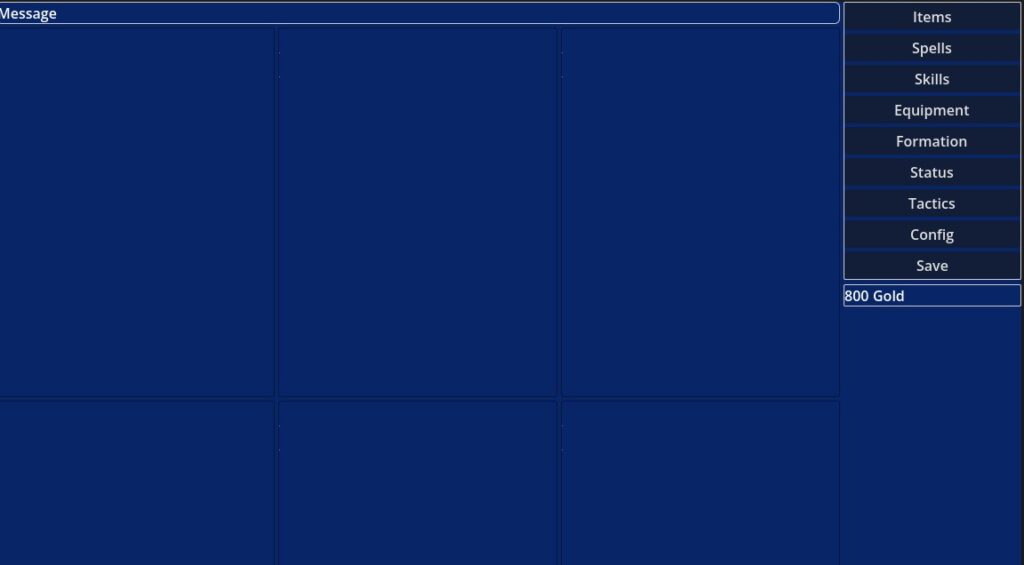
ここまででダンジョンや街でメニューを開いたり閉じたりできるようになったかと思います。上記の画像を見ると一目瞭然ですが、メニューは全然出来上がってはいません。本格的に実装に入る前に “準備” をします。この準備とは以下の通りです。
- メニュー画面にカーソルが表示される
- メインメニューボタンの英語/日本語対応
- 各ボタンの簡単な説明文の表示
- 各ボタンが押されたかの Output (コンソール) 表示
| Items | アイテム |
| Spells | 魔法 |
| Skills | スキル |
| Equipment | 装備 |
| Formation | 並び替え |
| Status | ステータス |
| Tactics | さくせん |
| Config | 設定 |
| Save | セーブ |
多言語対応用CSVファイルの追記
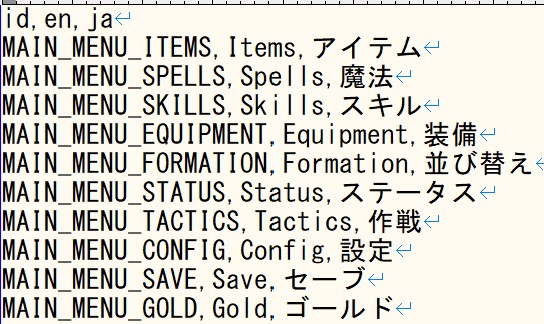

今までの言語対応同様に res://data/localization.csv を開き、メインメニューの説明用のID,英語表記,日本語表記の項目を用意します。データを記述しCSV形式で保存したあと、インポートしなおすのを忘れないでください。
メニュー画面用コード修正
class_name MenuWindow
extends Control

signal menu_opened
signal menu_closed

# 各ボタンへのオンレディ参照
@onready var items_button: Button = $MainMenuLayout/MainHBox/RMainMenuLayout/MenuList/ButtonList/Items
@onready var spells_button: Button = $MainMenuLayout/MainHBox/RMainMenuLayout/MenuList/ButtonList/Spells
@onready var skills_button: Button = $MainMenuLayout/MainHBox/RMainMenuLayout/MenuList/ButtonList/Skills
@onready var equipment_button: Button = $MainMenuLayout/MainHBox/RMainMenuLayout/MenuList/ButtonList/Equipment
@onready var formation_button: Button = $MainMenuLayout/MainHBox/RMainMenuLayout/MenuList/ButtonList/Formation
@onready var status_button: Button = $MainMenuLayout/MainHBox/RMainMenuLayout/MenuList/ButtonList/Status
@onready var tactics_button: Button = $MainMenuLayout/MainHBox/RMainMenuLayout/MenuList/ButtonList/Tactics
@onready var config_button: Button = $MainMenuLayout/MainHBox/RMainMenuLayout/MenuList/ButtonList/Config
@onready var save_button: Button = $MainMenuLayout/MainHBox/RMainMenuLayout/MenuList/ButtonList/Save

@onready var menu_message_label: Label = $MainMenuLayout/MainHBox/LMainMenuLayout/MessageContainer/MenuMessageLabel
@onready var gold_label: Label = $MainMenuLayout/MainHBox/RMainMenuLayout/GoldWindow/GoldHBox/GoldLabel

# メニューを開いた直前にフォーカスを持っていたノードを一時退避する変数
var _last_town_focus_owner: Control = null

func _ready() -> void:
	hide()

	# 各ボタンが押されたときのイベント(シグナル)を一括接続
	if items_button: items_button.pressed.connect(func(): _on_menu_button_pressed("ITEMS"))
	if spells_button: spells_button.pressed.connect(func(): _on_menu_button_pressed("SPELLS"))
	if skills_button: skills_button.pressed.connect(func(): _on_menu_button_pressed("SKILLS"))
	if equipment_button: equipment_button.pressed.connect(func(): _on_menu_button_pressed("EQUIPMENT"))
	if formation_button: formation_button.pressed.connect(func(): _on_menu_button_pressed("FORMATION"))
	if status_button: status_button.pressed.connect(func(): _on_menu_button_pressed("STATUS"))
	if tactics_button: tactics_button.pressed.connect(func(): _on_menu_button_pressed("TACTICS"))
	if config_button: config_button.pressed.connect(func(): _on_menu_button_pressed("CONFIG"))
	if save_button: save_button.pressed.connect(func(): _on_menu_button_pressed("SAVE"))

	# 各ボタンにカーソルが乗った(フォーカスされた)ときのイベントを一括接続
	if items_button: items_button.focus_entered.connect(func(): _update_explanation("MAIN_MENU_ITEMS_EXPLANATION"))
	if spells_button: spells_button.focus_entered.connect(func(): _update_explanation("MAIN_MENU_SPELLS_EXPLANATION"))
	if skills_button: skills_button.focus_entered.connect(func(): _update_explanation("MAIN_MENU_SKILLS_EXPLANATION"))
	if equipment_button: equipment_button.focus_entered.connect(func(): _update_explanation("MAIN_MENU_EQUIPMENT_EXPLANATION"))
	if formation_button: formation_button.focus_entered.connect(func(): _update_explanation("MAIN_MENU_FORMATION_EXPLANATION"))
	if status_button: status_button.focus_entered.connect(func(): _update_explanation("MAIN_MENU_STATUS_EXPLANATION"))
	if tactics_button: tactics_button.focus_entered.connect(func(): _update_explanation("MAIN_MENU_TACTICS_EXPLANATION"))
	if config_button: config_button.focus_entered.connect(func(): _update_explanation("MAIN_MENU_CONFIG_EXPLANATION"))
	if save_button: save_button.focus_entered.connect(func(): _update_explanation("MAIN_MENU_SAVE_EXPLANATION"))

func _input(event: InputEvent) -> void:
	# 1. メニューが閉じているとき:セレクトボタンでメニューを開く
	if not visible:
		if event.is_action_pressed("ui_select"):
			get_viewport().set_input_as_handled()
			open_menu()
		return

	# 2. メニューが開いているとき:キャンセルボタンでメニューを閉じる
	if event.is_action_pressed("ui_cancel"):
		get_viewport().set_input_as_handled()
		close_menu()

## メニューを開く処理
func open_menu() -> void:
	_localize_menu_text()

	_last_town_focus_owner = get_viewport().gui_get_focus_owner()
	if _last_town_focus_owner:
		_last_town_focus_owner.release_focus()

	show()

	await get_tree().process_frame
	if items_button:
		items_button.grab_focus()

	menu_opened.emit()

## メニューを閉じる処理
func close_menu() -> void:
	hide()

	if _last_town_focus_owner and is_instance_valid(_last_town_focus_owner) and _last_town_focus_owner.is_inside_tree():
		_last_town_focus_owner.grab_focus()

	_last_town_focus_owner = null
	menu_closed.emit()

## メニュー内のテキストをローカライズデータに基づいて一括翻訳する
func _localize_menu_text() -> void:
	if items_button: items_button.text = tr("MAIN_MENU_ITEMS")
	if spells_button: spells_button.text = tr("MAIN_MENU_SPELLS")
	if skills_button: skills_button.text = tr("MAIN_MENU_SKILLS")
	if equipment_button: equipment_button.text = tr("MAIN_MENU_EQUIPMENT")
	if formation_button: formation_button.text = tr("MAIN_MENU_FORMATION")
	if status_button: status_button.text = tr("MAIN_MENU_STATUS")
	if tactics_button: tactics_button.text = tr("MAIN_MENU_TACTICS")
	if config_button: config_button.text = tr("MAIN_MENU_CONFIG")
	if save_button: save_button.text = tr("MAIN_MENU_SAVE")

	if gold_label: gold_label.text = tr("MAIN_MENU_GOLD")

## メニューボタン押下時の分岐処理ハンドラー
func _on_menu_button_pressed(button_id: String) -> void:
	match button_id:
		"ITEMS": print("[MenuWindow] アイテムメニューが選択されました")
		"SPELLS": print("[MenuWindow] 魔法メニューが選択されました")
		"SKILLS": print("[MenuWindow] スキルメニューが選択されました")
		"EQUIPMENT": print("[MenuWindow] 装備メニューが選択されました")
		"FORMATION": print("[MenuWindow] 並び替えメニューが選択されました")
		"STATUS": print("[MenuWindow] ステータスメニューが選択されました")
		"TACTICS": print("[MenuWindow] 作戦メニューが選択されました")
		"CONFIG": print("[MenuWindow] 設定メニューが選択されました")
		"SAVE": print("[MenuWindow] セーブメニューが選択されました")
		_: print("[MenuWindow] 不明なボタンが押されました: ", button_id)

# ==============================================================================
# 新設:説明文更新用のヘルパー関数
# ==============================================================================
func _update_explanation(loc_id: String) -> void:
	if menu_message_label:
		menu_message_label.text = tr(loc_id)
メニュー画面用スクリプト (menu_window.gd) を上記コードに修正します。これでメニュー画面でメインメニューの各ボタンにカーソルを合わせると説明文が表示され、各ボタンを押すと Output (コンソール) に文字が出力されます。
メニューの実装
ここまでメニュー画面における実装前の準備をしてきました。ここから本格的に実装に入っていきます。
設定変更 (言語・画面サイズ)
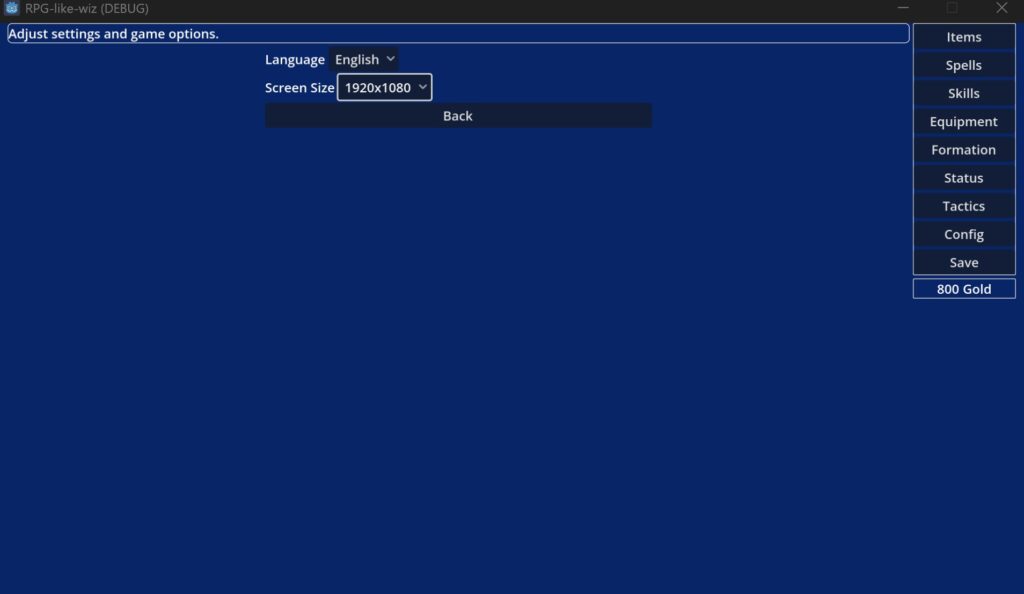
メニュー画面に「設定」(Config) の項目があります。この設定から、ゲーム内言語と画面サイズを変えられるようにしていきましょう。
| 言語 | 英語 / 日本語 (デフォルトは英語) |
| 画面サイズ (Windowモードのみ) | 1280 x 720 / 1920 x 1080 (デフォルトは1280 x 720) |
ノード構成 (追加)
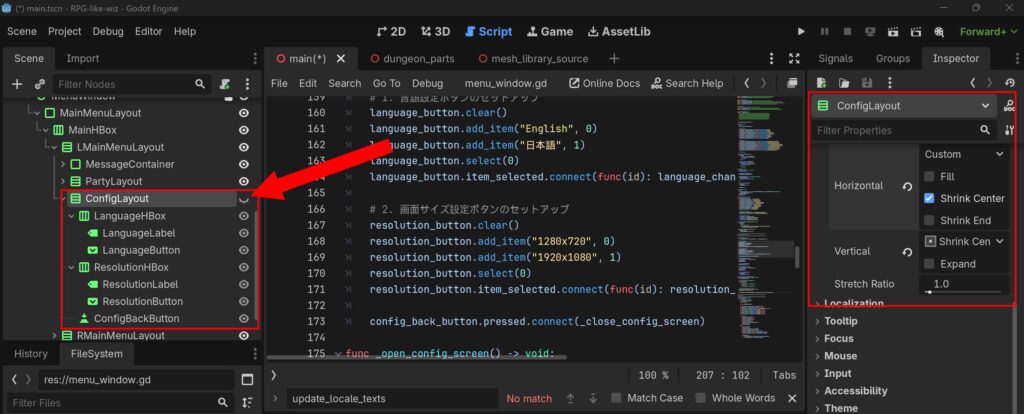
- MenuWindow (Control)
- MainMenuLayout (PanelContainer)
- MainHBox (HBoxContainer)
- LMainMenuLayout (VBoxContainer)
- MessageContainer (PanelContainer)
- MenuMessageLabel (Label)
- PartyLayout (VBoxContainer)
- (省略)
- ConfigLayout (VBoxContainer) ※ 新規
- LanguageHBox (HBoxContainer) ※ 新規
- LanguageLabel (Label) ※ 新規
- LanguageButton (OptionButton) ※ 新規
- ResolutionHBox (HBoxContainer) ※ 新規
- ResolutionLabel (Label) ※ 新規
- ResolutionButton (OptionButton) ※ 新規
- ConfigBackButton (Button) ※ 新規
- LanguageHBox (HBoxContainer) ※ 新規
- MessageContainer (PanelContainer)
- RMainMenuLayout (VBoxContainer)
- (省略)
- LMainMenuLayout (VBoxContainer)
- MainHBox (HBoxContainer)
- MainMenuLayout (PanelContainer)
| ConfigLayout (VBoxContainer) | メニュー設定用。非表示 |
| LanguageHBox (HBoxContainer) | 言語設定用 |
| LanguageLabel (Label) | 言語 |
| LanguageButton (OptionButton) | 英語/ 日本語 |
| ResolutionHBox (HBoxContainer) | 画面設定用 |
| ResolutionLabel (Label) | 画面サイズ |
| ResolutionButton (OptionButton) | 1270 x 720 / 1920 x 1080 |
| ConfigBackButton (Button) | メインメニューに戻る |
上記のようにノードを作成してください。ConfigLayout を非表示にするのを忘れないようにします。
画面設定の変更 (Godot Engine)
今までの設定だとメニュー画面の設定から画面サイズの変更をするスクリプトを用意したとしても、Godot Engine 側で変更できないと言われてしまいます。その設定を解除します。
ウィンドウサイズ固定・変更禁止の設定
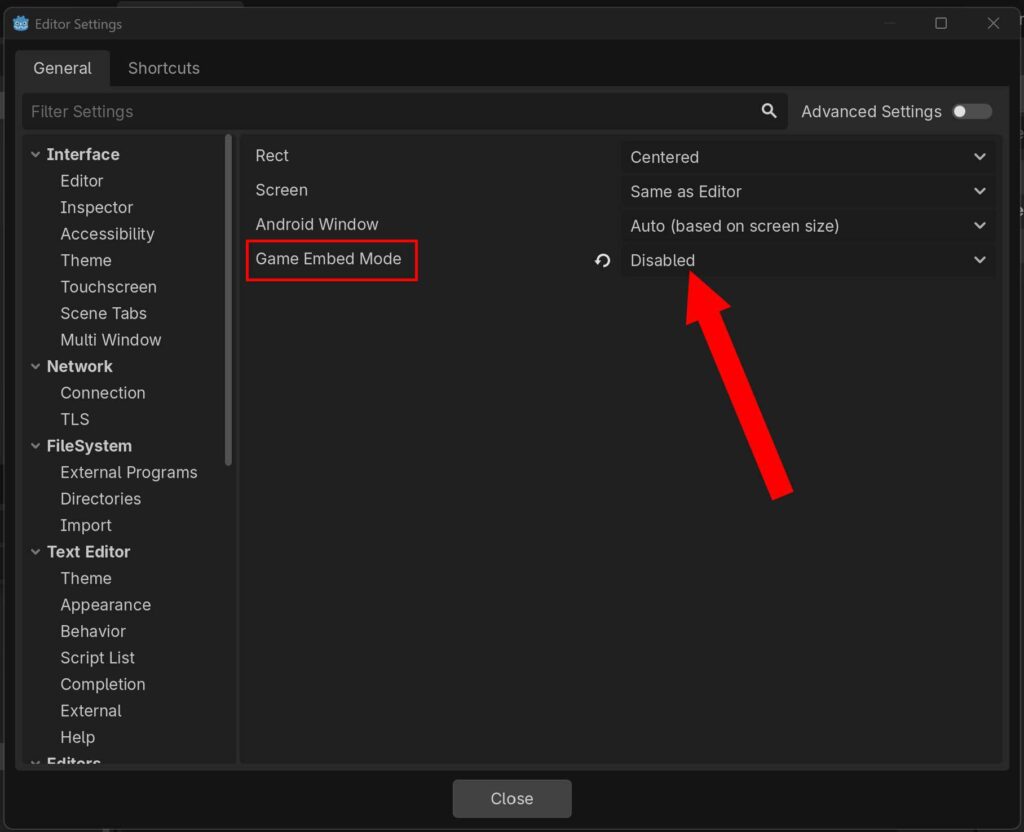
まず、Godot Engine の Editor メニューから Editor Settings を選択してください。左側のメニューから Run – Window Placement を探し、その中の Game Embed Mode を Disable にします。
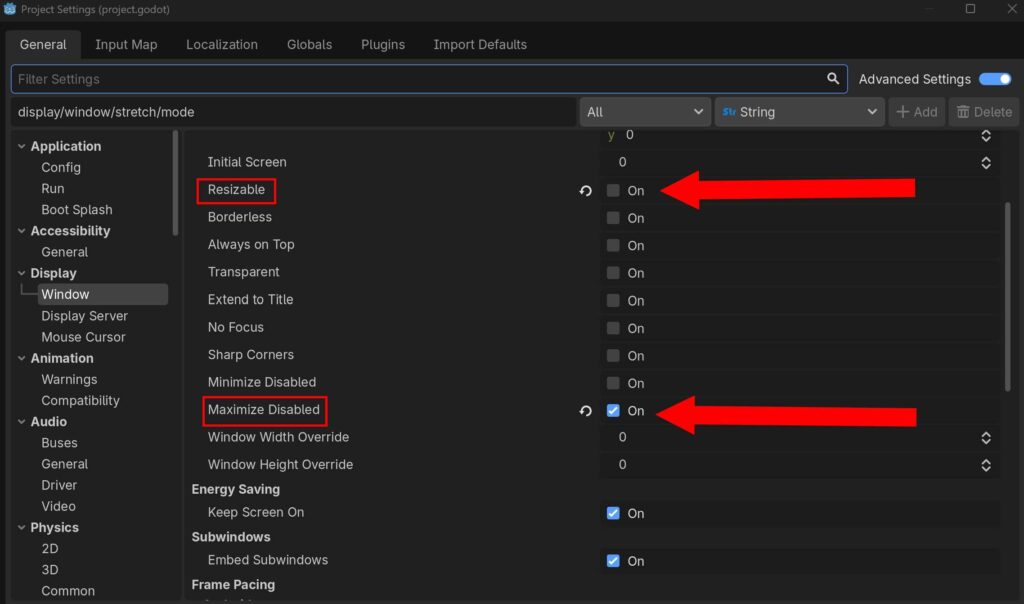
次はメニューの Project から Project Settings を選択し、General タブの左側の箇所から Display – Window を探してください。その Window をクリックし、Resizable をオフ、Maximize Disabled をオンにします。これによりユーザがウィンドウサイズをマウスなどで変更するのを禁止することが可能です。
多言語対応用CSVファイルの追記

これまでの言語対応同様に res://data/localization.csv を開き、メニュー設定用のID,英語表記,日本語表記の項目を用意します。データを記述しCSV形式で保存したあと、インポートしなおすのを忘れないでください。
メイン処理用コード修正
# ==============================================================================
# main.gd : ゲーム全体(街 / 探索 / 戦闘 / システム設定)を統括するコントローラー
# ==============================================================================
extends Node

enum GameState { EXPLORE, BATTLE, TOWN }
var current_state: GameState = GameState.EXPLORE

var town_system: TownSystem
var battle_system: BattleSystem

# 各種ノード参照
@onready var dungeon_explore: DungeonExplore = $Camera3D
@onready var audio_manager = $AudioManager
@onready var menu_window: MenuWindow = $CanvasLayer/MenuWindow

func _ready() -> void:
	print("【Main】コントローラー起動。")

	town_system = TownSystem.new(self)
	battle_system = BattleSystem.new(self)

	# 通常シグナル結合
	dungeon_explore.battle_triggered.connect(_on_battle_triggered)
	dungeon_explore.town_entered.connect(_on_town_entered)
	town_system.dungeon_entered.connect(_on_dungeon_entered)
	battle_system.battle_finished.connect(_on_battle_finished)

	# MenuWindowの設定変更要求シグナルをメインでキャッチする
	if menu_window:
		menu_window.language_change_requested.connect(_on_language_change_requested)
		menu_window.resolution_change_requested.connect(_on_resolution_change_requested)

	# デフォルトシステム設定をメインの権限で強制適用 (英語 / 1280x720)
	_apply_language(0)
	_apply_resolution(0)

	# 初期状態を街モードにして起動
	_change_state(GameState.TOWN)

func _change_state(next_state: GameState) -> void:
	current_state = next_state

	if town_system: town_system.end_town_mode()
	if battle_system: battle_system.end_battle_mode()
	if dungeon_explore: dungeon_explore.set_explore_active(false)

	match current_state:
		GameState.EXPLORE:
			audio_manager.stop_bgm()
			dungeon_explore.set_explore_active(true)
		GameState.TOWN:
			audio_manager.play_bgm("town")
			town_system.start_town_mode()
		GameState.BATTLE:
			audio_manager.stop_bgm()
			var current_floor_num: int = dungeon_explore.current_floor
			var limits: Dictionary = dungeon_explore.get_floor_enemy_limits(current_floor_num)
			var min_count: int = limits["min"]
			var max_count: int = limits["max"]
			var available_enemy_ids: Array[String] = []

			for enemy_id in battle_system.enemy_master_data.keys():
				var enemy_data = battle_system.enemy_master_data[enemy_id]
				if typeof(enemy_data) == TYPE_DICTIONARY and enemy_data.has("appear_floors"):
					var floors_list: Array = enemy_data["appear_floors"]
					for f in floors_list:
						if int(f) == current_floor_num:
							available_enemy_ids.append(enemy_id)
							break

			if available_enemy_ids.is_empty():
				available_enemy_ids.append("goblin")

			battle_system.start_battle(available_enemy_ids, min_count, max_count)

func _on_battle_triggered() -> void:
	_change_state(GameState.BATTLE)

func _on_battle_finished() -> void:
	_change_state(GameState.EXPLORE)

func _on_town_entered() -> void:
	_change_state(GameState.TOWN)

func _on_dungeon_entered() -> void:
	dungeon_explore.reset_to_dungeon_start()
	_change_state(GameState.EXPLORE)

# ==============================================================================
# メインの権限によるシステム設定実行ロジック
# ==============================================================================

## メニューからの言語変更要求ハンドル
func _on_language_change_requested(index: int) -> void:
	_apply_language(index)

## メニューからの解像度変更要求ハンドル
func _on_resolution_change_requested(index: int) -> void:
	_apply_resolution(index)

## 言語の実際の適用と、ゲーム内の全システムへの翻訳命令
func _apply_language(index: int) -> void:
	match index:
		0:
			TranslationServer.set_locale("en")
			print("[Main] 言語を英語(en)に設定しました。")
		1:
			TranslationServer.set_locale("ja")
			print("[Main] 言語を日本語(ja)に設定しました。")

	# 言語が変わったので、街のメインメニューを再翻訳
	if town_system:
		town_system.localize_town_menu()

	# 言語が変わったので、メニューウィンドウ自身のテキストも再翻訳
	if menu_window:
		menu_window.update_all_strings()

## 画面サイズの実際の適用(手動リサイズ禁止・Configサイズ同期・文字サイズ一括スケール型)
func _apply_resolution(index: int) -> void:
	var target_size := Vector2i(1280, 720)
	var font_scale := 1.0

	match index:
		0:
			target_size = Vector2i(1280, 720)
			font_scale = 1.0
		1:
			target_size = Vector2i(1920, 1080)
			font_scale = 1.5

	var window := get_window()

	# 1. ウィンドウの物理サイズを固定
	window.content_scale_mode = Window.CONTENT_SCALE_MODE_DISABLED
	window.mode = Window.MODE_WINDOWED
	DisplayServer.window_set_size(target_size)
	window.size = target_size

	# 2. 画面中央寄せ
	var screen_id = window.current_screen
	var screen_rect = DisplayServer.screen_get_usable_rect(screen_id)
	window.position = screen_rect.position + (screen_rect.size - target_size) / 2

	# 3. 先に文字スケールファクターを確定させる
	window.content_scale_factor = font_scale

	# 4. スケール確定後に、menu_window のコンテナサイズを同期する
	if menu_window:
		if menu_window.has_method("set_menu_full_size"):
			menu_window.set_menu_full_size(index)

		if menu_window.has_method("set_config_layout_size"):
			menu_window.set_config_layout_size(index)

		# 画面サイズを変えると自動的に変わるので index 不要
		if menu_window.has_method("set_main_layouts_size"):
			menu_window.set_main_layouts_size()

	print("[Main] 解像度適用完了: ", target_size.x, "x", target_size.y)
メイン処理用スクリプト (main.gd) を上記コードに修正します。こちらはメニュー画面設定対応、メニュー画面で設定された内容を実現するものです。
メニュー画面用コード修正
class_name MenuWindow
extends Control

signal menu_opened
signal menu_closed

# メインノードに設定変更をお願いするためのシグナル
signal language_change_requested(index: int)
signal resolution_change_requested(index: int)

# --- 右側メニューボタン参照 ---
@onready var items_button: Button = $MainMenuLayout/MainHBox/RMainMenuLayout/MenuList/ButtonList/Items
@onready var spells_button: Button = $MainMenuLayout/MainHBox/RMainMenuLayout/MenuList/ButtonList/Spells
@onready var skills_button: Button = $MainMenuLayout/MainHBox/RMainMenuLayout/MenuList/ButtonList/Skills
@onready var equipment_button: Button = $MainMenuLayout/MainHBox/RMainMenuLayout/MenuList/ButtonList/Equipment
@onready var formation_button: Button = $MainMenuLayout/MainHBox/RMainMenuLayout/MenuList/ButtonList/Formation
@onready var status_button: Button = $MainMenuLayout/MainHBox/RMainMenuLayout/MenuList/ButtonList/Status
@onready var tactics_button: Button = $MainMenuLayout/MainHBox/RMainMenuLayout/MenuList/ButtonList/Tactics
@onready var config_button: Button = $MainMenuLayout/MainHBox/RMainMenuLayout/MenuList/ButtonList/Config
@onready var save_button: Button = $MainMenuLayout/MainHBox/RMainMenuLayout/MenuList/ButtonList/Save

# --- 左側基本UI参照 ---
@onready var menu_message_label: Label = $MainMenuLayout/MainHBox/LMainMenuLayout/MessageContainer/MenuMessageLabel
@onready var gold_label: Label = $MainMenuLayout/MainHBox/RMainMenuLayout/GoldWindow/GoldHBox/GoldLabel
@onready var party_layout: VBoxContainer = $MainMenuLayout/MainHBox/LMainMenuLayout/PartyLayout
@onready var l_main_menu_layout: Control = $MainMenuLayout/MainHBox/LMainMenuLayout
@onready var r_main_menu_layout: Control = $MainMenuLayout/MainHBox/RMainMenuLayout

# --- 設定(Config)画面用UI参照 ---
@onready var main_menu_layout: Control = $MainMenuLayout
@onready var config_layout: VBoxContainer = $MainMenuLayout/MainHBox/LMainMenuLayout/ConfigLayout
@onready var language_button: OptionButton = $MainMenuLayout/MainHBox/LMainMenuLayout/ConfigLayout/LanguageHBox/LanguageButton
@onready var resolution_button: OptionButton = $MainMenuLayout/MainHBox/LMainMenuLayout/ConfigLayout/ResolutionHBox/ResolutionButton
@onready var config_back_button: Button = $MainMenuLayout/MainHBox/LMainMenuLayout/ConfigLayout/ConfigBackButton

# 設定画面内のテキストラベル参照
@onready var language_label: Label = $MainMenuLayout/MainHBox/LMainMenuLayout/ConfigLayout/LanguageHBox/LanguageLabel
@onready var resolution_label: Label = $MainMenuLayout/MainHBox/LMainMenuLayout/ConfigLayout/ResolutionHBox/ResolutionLabel

# --- パーティメンバーUI(1〜6)へのルート参照 ---
@onready var member_nodes: Array = [
	$MainMenuLayout/MainHBox/LMainMenuLayout/PartyLayout/FrontRowPartyMember/PartyMember1,
	$MainMenuLayout/MainHBox/LMainMenuLayout/PartyLayout/FrontRowPartyMember/PartyMember2,
	$MainMenuLayout/MainHBox/LMainMenuLayout/PartyLayout/FrontRowPartyMember/PartyMember3,
	$MainMenuLayout/MainHBox/LMainMenuLayout/PartyLayout/BackRowPartyMember/PartyMember4,
	$MainMenuLayout/MainHBox/LMainMenuLayout/PartyLayout/BackRowPartyMember/PartyMember5,
	$MainMenuLayout/MainHBox/LMainMenuLayout/PartyLayout/BackRowPartyMember/PartyMember6
]

var _last_town_focus_owner: Control = null

func _ready() -> void:
	hide()
	if config_layout: config_layout.hide()

	# 通常メニューボタンのシグナル接続
	if items_button: items_button.pressed.connect(func(): _on_menu_button_pressed("ITEMS"))
	if spells_button: spells_button.pressed.connect(func(): _on_menu_button_pressed("SPELLS"))
	if skills_button: skills_button.pressed.connect(func(): _on_menu_button_pressed("SKILLS"))
	if equipment_button: equipment_button.pressed.connect(func(): _on_menu_button_pressed("EQUIPMENT"))
	if formation_button: formation_button.pressed.connect(func(): _on_menu_button_pressed("FORMATION"))
	if status_button: status_button.pressed.connect(func(): _on_menu_button_pressed("STATUS"))
	if tactics_button: tactics_button.pressed.connect(func(): _on_menu_button_pressed("TACTICS"))
	if config_button: config_button.pressed.connect(func(): _on_menu_button_pressed("CONFIG"))
	if save_button: save_button.pressed.connect(func(): _on_menu_button_pressed("SAVE"))

	# メニューのフォーカスイベント接続
	if items_button: items_button.focus_entered.connect(func(): _update_explanation("MAIN_MENU_ITEMS_EXPLANATION"))
	if spells_button: spells_button.focus_entered.connect(func(): _update_explanation("MAIN_MENU_SPELLS_EXPLANATION"))
	if skills_button: skills_button.focus_entered.connect(func(): _update_explanation("MAIN_MENU_SKILLS_EXPLANATION"))
	if equipment_button: equipment_button.focus_entered.connect(func(): _update_explanation("MAIN_MENU_EQUIPMENT_EXPLANATION"))
	if formation_button: formation_button.focus_entered.connect(func(): _update_explanation("MAIN_MENU_FORMATION_EXPLANATION"))
	if status_button: status_button.focus_entered.connect(func(): _update_explanation("MAIN_MENU_STATUS_EXPLANATION"))
	if tactics_button: tactics_button.focus_entered.connect(func(): _update_explanation("MAIN_MENU_TACTICS_EXPLANATION"))
	if config_button: config_button.focus_entered.connect(func(): _update_explanation("MAIN_MENU_CONFIG_EXPLANATION"))
	if save_button: save_button.focus_entered.connect(func(): _update_explanation("MAIN_MENU_SAVE_EXPLANATION"))

	_setup_config_ui()

func _input(event: InputEvent) -> void:
	if not visible:
		if event.is_action_pressed("ui_select"):
			get_viewport().set_input_as_handled()
			open_menu()
		return

	if event.is_action_pressed("ui_cancel"):
		get_viewport().set_input_as_handled()
		if config_layout and config_layout.visible:
			_close_config_screen()
		else:
			close_menu()

func open_menu() -> void:
	update_all_strings() # 開いた瞬間に自分のテキストをローカライズ
	_update_party_display()

	if config_layout: config_layout.hide()
	if party_layout: party_layout.show()

	_last_town_focus_owner = get_viewport().gui_get_focus_owner()
	if _last_town_focus_owner:
		_last_town_focus_owner.release_focus()

	show()

	await get_tree().process_frame
	if items_button:
		items_button.grab_focus()

	menu_opened.emit()

func close_menu() -> void:
	hide()
	if _last_town_focus_owner and is_instance_valid(_last_town_focus_owner) and _last_town_focus_owner.is_inside_tree():
		_last_town_focus_owner.grab_focus()
	_last_town_focus_owner = null
	menu_closed.emit()

## メインメニューおよび現在の説明文を最新の言語に再翻訳するパブリック関数
func update_all_strings() -> void:
	if items_button: items_button.text = tr("MAIN_MENU_ITEMS")
	if spells_button: spells_button.text = tr("MAIN_MENU_SPELLS")
	if skills_button: skills_button.text = tr("MAIN_MENU_SKILLS")
	if equipment_button: equipment_button.text = tr("MAIN_MENU_EQUIPMENT")
	if formation_button: formation_button.text = tr("MAIN_MENU_FORMATION")
	if status_button: status_button.text = tr("MAIN_MENU_STATUS")
	if tactics_button: tactics_button.text = tr("MAIN_MENU_TACTICS")
	if config_button: config_button.text = tr("MAIN_MENU_CONFIG")
	if save_button: save_button.text = tr("MAIN_MENU_SAVE")
	if gold_label: gold_label.text = tr("MAIN_MENU_GOLD")

	# 設定画面内の各設定項目ラベルのローカライズを適用
	if language_label: language_label.text = tr("MENU_SETTINGS_LANGUAGE_LABEL")
	if resolution_label: resolution_label.text = tr("MENU_SETTINGS_RESOLUTION_LABEL")
	if config_back_button: config_back_button.text = tr("MENU_SETTINGS_BACKBUTTON_LABEL")

	# 現在フォーカスが当たっているボタンの説明文も追従させる
	if config_layout and config_layout.visible:
		_update_explanation("MAIN_MENU_CONFIG_EXPLANATION")
	elif config_button and config_button.has_focus():
		_update_explanation("MAIN_MENU_CONFIG_EXPLANATION")

func _on_menu_button_pressed(button_id: String) -> void:
	match button_id:
		"CONFIG":
			_open_config_screen()
		"ITEMS", "SPELLS", "SKILLS", "EQUIPMENT", "FORMATION", "STATUS", "TACTICS", "SAVE":
			print("[MenuWindow] 選択されたメニュー: ", button_id)

func _update_explanation(loc_id: String) -> void:
	if menu_message_label:
		menu_message_label.text = tr(loc_id)

# ==============================================================================
# メニュー画面全体のフルサイズ固定(全画面化)
# ==============================================================================
## メイン画面の解像度(Index)に合わせて、MenuWindow と MainMenuLayout を画面いっぱいの全画面サイズに固定する
func set_menu_full_size(resolution_index: int) -> void:
	if not main_menu_layout: return

	# 1. いったん最小サイズの制限を完全に解除して、縮まなくなるバグをリセットする
	self.custom_minimum_size = Vector2.ZERO
	main_menu_layout.custom_minimum_size = Vector2.ZERO

	# 2. 設定された解像度のターゲットサイズ
	var target_screen_size := Vector2(1280, 720)

	# 左上起点に固定
	self.set_anchors_preset(Control.PRESET_TOP_LEFT)
	self.position = Vector2.ZERO
	main_menu_layout.set_anchors_preset(Control.PRESET_TOP_LEFT)
	main_menu_layout.position = Vector2.ZERO

	# インスペクターの Layout - Transform - Size の値を直接書き換え
	self.size = target_screen_size
	main_menu_layout.size = target_screen_size

	# 変更したサイズを新しい最小サイズとしてロックする
	self.custom_minimum_size = target_screen_size
	main_menu_layout.custom_minimum_size = target_screen_size

	print("[MenuWindow] Transformサイズを補正完了: ", self.size.x, "x", self.size.y)

# ==============================================================================
# 設定画面(Config)のコントロールロジック(通知特化型)
# ==============================================================================

func _setup_config_ui() -> void:
	if not language_button or not resolution_button or not config_back_button: return

	# 1. 言語設定ボタンのセットアップ
	language_button.clear()
	language_button.add_item("English", 0)
	language_button.add_item("日本語", 1)
	language_button.select(0)
	language_button.item_selected.connect(func(id): language_change_requested.emit(id))

	# 2. 画面サイズ設定ボタンのセットアップ
	resolution_button.clear()
	resolution_button.add_item("1280x720", 0)
	resolution_button.add_item("1920x1080", 1)
	resolution_button.select(0)
	resolution_button.item_selected.connect(func(id): resolution_change_requested.emit(id))

	config_back_button.pressed.connect(_close_config_screen)

func _open_config_screen() -> void:
	if not config_layout or not party_layout: return
	party_layout.hide()
	config_layout.show()

	await get_tree().process_frame
	language_button.grab_focus()

func _close_config_screen() -> void:
	if not config_layout or not party_layout: return
	config_layout.hide()
	party_layout.show()

	await get_tree().process_frame
	if config_button:
		config_button.grab_focus()

## メイン画面の解像度(Index)に合わせて、設定画面のコンテナサイズを決め打ちで変更する
func set_config_layout_size(resolution_index: int) -> void:
	if not config_layout: return

	var target_config_size := Vector2(320, 180)
	match resolution_index:
		0: # 1280x720 のとき
			target_config_size = Vector2(320, 180)
		1: # 1920x1080 のとき
			target_config_size = Vector2(480, 270)

	# Controlノードの最小サイズと現在のサイズを強制的に決め打ちサイズに固定する
	config_layout.custom_minimum_size = target_config_size
	config_layout.size = target_config_size

	print("[MenuWindow] ConfigLayout のサイズを設定しました: ", target_config_size.x, "x", target_config_size.y)

# ==============================================================================
# 解像度連動のメインレイアウトサイズ調整
# ==============================================================================

## メイン画面の解像度(Index)に合わせて、左右のメインメニューコンテナの横幅を固定切り替えする
func set_main_layouts_size() -> void:
	if not l_main_menu_layout or not r_main_menu_layout: return

	var left_width := 1120.0
	var right_width := 128.0

	# 左側レイアウトの横幅を固定 (縦幅 0 は「制限なし・HBoxの自動縦伸ばしに任せる」の意)
	l_main_menu_layout.custom_minimum_size = Vector2(left_width, 0)
	l_main_menu_layout.size.x = left_width

	# 右側レイアウトの横幅を固定
	r_main_menu_layout.custom_minimum_size = Vector2(right_width, 0)
	r_main_menu_layout.size.x = right_width

	print("[MenuWindow] メインレイアウトサイズを更新しました - L:", left_width, " R:", right_width)
メニュー画面用スクリプト (menu_window.gd) を上記コードに修正します。これは言語と画面サイズが変更されたら、メイン側に処理を移行するものになります。これで、メニュー画面から言語と画面サイズを変更することが可能です。
パーティメンバーの表示
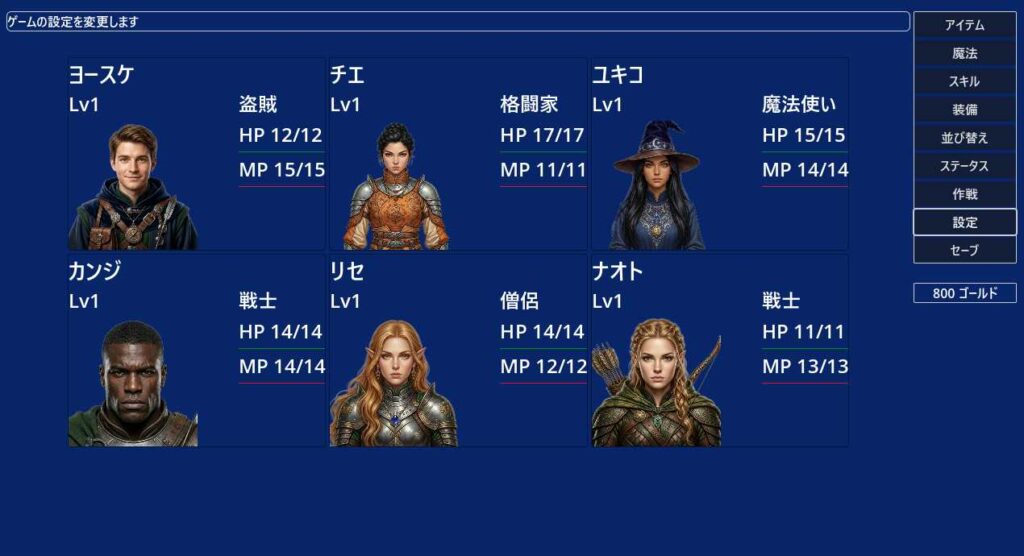
今はメニュー画面を開いてもパーティメンバーが表示されていません。そこでメニュー画面にパーティメンバーが表示されるように実装を行います。
ノード構成 (追加)
- MenuWindow (Control)
- MainMenuLayout (PanelContainer)
- MainHBox (HBoxContainer)
- LMainMenuLayout (VBoxContainer)
- DummySpaceL (Control) ※ 新規
- MessageContainer (PanelContainer)
- MenuMessageLabel (Label)
- PartyLayout (VBoxContainer)
- DummySpaceParty (Control) ※ 新規
- FrontRowPartyMember (HBoxContainer)
- PartyMember1 (PanelContainer)
- MemberHBox1 (HBoxContainer)
- Name (Label)
- LPartyMember1 (VBoxContainer)
- DummySpaceLP1 (Control) ※ 新規
- Lv (Label)
- Appearance (TextureRect)
- RPartyMember1 (GridContainer)
- DummySpaceRP1 (Control) ※ 新規
- Class (Label)
- HPLabel (Label)
- HPBar (ProgressBar)
- MPLabel (Label)
- MPBar (ProgressBar)
- MemberHBox1 (HBoxContainer)
- PartyMember2 (PanelContainer)
- (PartyMember1 と同じ)
- PartyMember3 (PanelContainer)
- (PartyMember1 と同じ)
- PartyMember1 (PanelContainer)
- BackRowPartyMember (HBoxContainer)
- PartyMember4 (PanelContainer)
- (PartyMember1 と同じ)
- PartyMember5 (PanelContainer)
- (PartyMember1 と同じ)
- PartyMember6 (PanelContainer)
- (PartyMember1 と同じ)
- PartyMember4 (PanelContainer)
- ConfigLayout (VBoxContainer)
- (省略)
- RMainMenuLayout (VBoxContainer)
- DummySpaceR (Control) ※ 新規
- MenuList (PanelContainer)
- ButtonList (VBoxContainer)
- Items (Button)
- Spells (Button)
- Skills (Button)
- Equipment (Button)
- Formation (Button)
- Status (Button)
- Tactics (Button)
- Config (Button)
- Save (Button)
- ButtonList (VBoxContainer)
- DummySpaceR2 (Control) ※ 新規
- GoldWindow (PanelContainer)
- GoldHBox (HBoxContainer)
- GoldValue (Label)
- GoldLabel (Label)
- GoldHBox (HBoxContainer)
- LMainMenuLayout (VBoxContainer)
- MainHBox (HBoxContainer)
- MainMenuLayout (PanelContainer)
上記のようにダミースペース用の Control ノードを追加します。Custom Minimum Size で、お好みの長さにスペースを調整してください。
メニュー画面用コード修正
class_name MenuWindow
extends Control

signal menu_opened
signal menu_closed

# メインノードに設定変更をお願いするためのシグナル
signal language_change_requested(index: int)
signal resolution_change_requested(index: int)

# --- 右側メニューボタン参照 ---
@onready var items_button: Button = $MainMenuLayout/MainHBox/RMainMenuLayout/MenuList/ButtonList/Items
@onready var spells_button: Button = $MainMenuLayout/MainHBox/RMainMenuLayout/MenuList/ButtonList/Spells
@onready var skills_button: Button = $MainMenuLayout/MainHBox/RMainMenuLayout/MenuList/ButtonList/Skills
@onready var equipment_button: Button = $MainMenuLayout/MainHBox/RMainMenuLayout/MenuList/ButtonList/Equipment
@onready var formation_button: Button = $MainMenuLayout/MainHBox/RMainMenuLayout/MenuList/ButtonList/Formation
@onready var status_button: Button = $MainMenuLayout/MainHBox/RMainMenuLayout/MenuList/ButtonList/Status
@onready var tactics_button: Button = $MainMenuLayout/MainHBox/RMainMenuLayout/MenuList/ButtonList/Tactics
@onready var config_button: Button = $MainMenuLayout/MainHBox/RMainMenuLayout/MenuList/ButtonList/Config
@onready var save_button: Button = $MainMenuLayout/MainHBox/RMainMenuLayout/MenuList/ButtonList/Save

# --- 左側基本UI参照 ---
@onready var menu_message_label: Label = $MainMenuLayout/MainHBox/LMainMenuLayout/MessageContainer/MenuMessageLabel
@onready var gold_label: Label = $MainMenuLayout/MainHBox/RMainMenuLayout/GoldWindow/GoldHBox/GoldLabel
@onready var party_layout: VBoxContainer = $MainMenuLayout/MainHBox/LMainMenuLayout/PartyLayout
@onready var l_main_menu_layout: Control = $MainMenuLayout/MainHBox/LMainMenuLayout
@onready var r_main_menu_layout: Control = $MainMenuLayout/MainHBox/RMainMenuLayout
@onready var front_row_party_member: HBoxContainer = $MainMenuLayout/MainHBox/LMainMenuLayout/PartyLayout/FrontRowPartyMember
@onready var back_row_party_member: HBoxContainer = $MainMenuLayout/MainHBox/LMainMenuLayout/PartyLayout/BackRowPartyMember

# --- 設定(Config)画面用UI参照 ---
@onready var main_menu_layout: Control = $MainMenuLayout
@onready var config_layout: VBoxContainer = $MainMenuLayout/MainHBox/LMainMenuLayout/ConfigLayout
@onready var language_button: OptionButton = $MainMenuLayout/MainHBox/LMainMenuLayout/ConfigLayout/LanguageHBox/LanguageButton
@onready var resolution_button: OptionButton = $MainMenuLayout/MainHBox/LMainMenuLayout/ConfigLayout/ResolutionHBox/ResolutionButton
@onready var config_back_button: Button = $MainMenuLayout/MainHBox/LMainMenuLayout/ConfigLayout/ConfigBackButton

# 設定画面内のテキストラベル参照
@onready var language_label: Label = $MainMenuLayout/MainHBox/LMainMenuLayout/ConfigLayout/LanguageHBox/LanguageLabel
@onready var resolution_label: Label = $MainMenuLayout/MainHBox/LMainMenuLayout/ConfigLayout/ResolutionHBox/ResolutionLabel

# --- パーティメンバーUI(1〜6)へのルート参照 ---
@onready var member_nodes: Array = [
	$MainMenuLayout/MainHBox/LMainMenuLayout/PartyLayout/FrontRowPartyMember/PartyMember1,
	$MainMenuLayout/MainHBox/LMainMenuLayout/PartyLayout/FrontRowPartyMember/PartyMember2,
	$MainMenuLayout/MainHBox/LMainMenuLayout/PartyLayout/FrontRowPartyMember/PartyMember3,
	$MainMenuLayout/MainHBox/LMainMenuLayout/PartyLayout/BackRowPartyMember/PartyMember4,
	$MainMenuLayout/MainHBox/LMainMenuLayout/PartyLayout/BackRowPartyMember/PartyMember5,
	$MainMenuLayout/MainHBox/LMainMenuLayout/PartyLayout/BackRowPartyMember/PartyMember6
]

var _last_town_focus_owner: Control = null

func _ready() -> void:
	hide()
	if config_layout: config_layout.hide()

	# 通常メニューボタンのシグナル接続
	if items_button: items_button.pressed.connect(func(): _on_menu_button_pressed("ITEMS"))
	if spells_button: spells_button.pressed.connect(func(): _on_menu_button_pressed("SPELLS"))
	if skills_button: skills_button.pressed.connect(func(): _on_menu_button_pressed("SKILLS"))
	if equipment_button: equipment_button.pressed.connect(func(): _on_menu_button_pressed("EQUIPMENT"))
	if formation_button: formation_button.pressed.connect(func(): _on_menu_button_pressed("FORMATION"))
	if status_button: status_button.pressed.connect(func(): _on_menu_button_pressed("STATUS"))
	if tactics_button: tactics_button.pressed.connect(func(): _on_menu_button_pressed("TACTICS"))
	if config_button: config_button.pressed.connect(func(): _on_menu_button_pressed("CONFIG"))
	if save_button: save_button.pressed.connect(func(): _on_menu_button_pressed("SAVE"))

	# メニューのフォーカスイベント接続
	if items_button: items_button.focus_entered.connect(func(): _update_explanation("MAIN_MENU_ITEMS_EXPLANATION"))
	if spells_button: spells_button.focus_entered.connect(func(): _update_explanation("MAIN_MENU_SPELLS_EXPLANATION"))
	if skills_button: skills_button.focus_entered.connect(func(): _update_explanation("MAIN_MENU_SKILLS_EXPLANATION"))
	if equipment_button: equipment_button.focus_entered.connect(func(): _update_explanation("MAIN_MENU_EQUIPMENT_EXPLANATION"))
	if formation_button: formation_button.focus_entered.connect(func(): _update_explanation("MAIN_MENU_FORMATION_EXPLANATION"))
	if status_button: status_button.focus_entered.connect(func(): _update_explanation("MAIN_MENU_STATUS_EXPLANATION"))
	if tactics_button: tactics_button.focus_entered.connect(func(): _update_explanation("MAIN_MENU_TACTICS_EXPLANATION"))
	if config_button: config_button.focus_entered.connect(func(): _update_explanation("MAIN_MENU_CONFIG_EXPLANATION"))
	if save_button: save_button.focus_entered.connect(func(): _update_explanation("MAIN_MENU_SAVE_EXPLANATION"))

	_setup_config_ui()
	setup_party_layout_sizes()

func _input(event: InputEvent) -> void:
	if not visible:
		if event.is_action_pressed("ui_select"):
			get_viewport().set_input_as_handled()
			open_menu()
		return

	if event.is_action_pressed("ui_cancel"):
		get_viewport().set_input_as_handled()
		if config_layout and config_layout.visible:
			_close_config_screen()
		else:
			close_menu()

func open_menu() -> void:
	update_all_strings() # 開いた瞬間に自分のテキストをローカライズ
	_update_party_display()

	if config_layout: config_layout.hide()
	if party_layout: party_layout.show()

	_last_town_focus_owner = get_viewport().gui_get_focus_owner()
	if _last_town_focus_owner:
		_last_town_focus_owner.release_focus()

	show()

	await get_tree().process_frame
	if items_button:
		items_button.grab_focus()

	menu_opened.emit()

func close_menu() -> void:
	hide()
	if _last_town_focus_owner and is_instance_valid(_last_town_focus_owner) and _last_town_focus_owner.is_inside_tree():
		_last_town_focus_owner.grab_focus()
	_last_town_focus_owner = null
	menu_closed.emit()

## メインメニューおよび現在の説明文を最新の言語に再翻訳するパブリック関数
func update_all_strings() -> void:
	if items_button: items_button.text = tr("MAIN_MENU_ITEMS")
	if spells_button: spells_button.text = tr("MAIN_MENU_SPELLS")
	if skills_button: skills_button.text = tr("MAIN_MENU_SKILLS")
	if equipment_button: equipment_button.text = tr("MAIN_MENU_EQUIPMENT")
	if formation_button: formation_button.text = tr("MAIN_MENU_FORMATION")
	if status_button: status_button.text = tr("MAIN_MENU_STATUS")
	if tactics_button: tactics_button.text = tr("MAIN_MENU_TACTICS")
	if config_button: config_button.text = tr("MAIN_MENU_CONFIG")
	if save_button: save_button.text = tr("MAIN_MENU_SAVE")
	if gold_label: gold_label.text = tr("MAIN_MENU_GOLD")

	# 設定画面内の各設定項目ラベルのローカライズを適用
	if language_label: language_label.text = tr("MENU_SETTINGS_LANGUAGE_LABEL")
	if resolution_label: resolution_label.text = tr("MENU_SETTINGS_RESOLUTION_LABEL")
	if config_back_button: config_back_button.text = tr("MENU_SETTINGS_BACKBUTTON_LABEL")

	# 現在フォーカスが当たっているボタンの説明文も追従させる
	if config_layout and config_layout.visible:
		_update_explanation("MAIN_MENU_CONFIG_EXPLANATION")
	elif config_button and config_button.has_focus():
		_update_explanation("MAIN_MENU_CONFIG_EXPLANATION")

	# パーティメンバーの表示対応
	_update_party_display()

func _on_menu_button_pressed(button_id: String) -> void:
	match button_id:
		"CONFIG":
			_open_config_screen()
		"ITEMS", "SPELLS", "SKILLS", "EQUIPMENT", "FORMATION", "STATUS", "TACTICS", "SAVE":
			print("[MenuWindow] 選択されたメニュー: ", button_id)

func _update_explanation(loc_id: String) -> void:
	if menu_message_label:
		menu_message_label.text = tr(loc_id)

# ==============================================================================
# メニュー画面全体のフルサイズ固定(全画面化)
# ==============================================================================
## メイン画面の解像度(Index)に合わせて、MenuWindow と MainMenuLayout を画面いっぱいの全画面サイズに固定する
func set_menu_full_size() -> void:
	if not main_menu_layout: return

	# 1. いったん最小サイズの制限を完全に解除して、縮まなくなるバグをリセットする
	self.custom_minimum_size = Vector2.ZERO
	main_menu_layout.custom_minimum_size = Vector2.ZERO

	# 2. 設定された解像度のターゲットサイズ
	var target_screen_size := Vector2(1280, 720)

	# 左上起点に固定
	self.set_anchors_preset(Control.PRESET_TOP_LEFT)
	self.position = Vector2.ZERO
	main_menu_layout.set_anchors_preset(Control.PRESET_TOP_LEFT)
	main_menu_layout.position = Vector2.ZERO

	# インスペクターの Layout - Transform - Size の値を直接書き換え
	self.size = target_screen_size
	main_menu_layout.size = target_screen_size

	# 変更したサイズを新しい最小サイズとしてロックする
	self.custom_minimum_size = target_screen_size
	main_menu_layout.custom_minimum_size = target_screen_size

	print("[MenuWindow] Transformサイズを補正完了: ", self.size.x, "x", self.size.y)

# ==============================================================================
# 設定画面(Config)のコントロールロジック(通知特化型)
# ==============================================================================

func _setup_config_ui() -> void:
	if not language_button or not resolution_button or not config_back_button: return

	# 1. 言語設定ボタンのセットアップ
	language_button.clear()
	language_button.add_item("English", 0)
	language_button.add_item("日本語", 1)
	language_button.select(0)
	language_button.item_selected.connect(func(id): language_change_requested.emit(id))

	# 2. 画面サイズ設定ボタンのセットアップ
	resolution_button.clear()
	resolution_button.add_item("1280x720", 0)
	resolution_button.add_item("1920x1080", 1)
	resolution_button.select(0)
	resolution_button.item_selected.connect(func(id): resolution_change_requested.emit(id))

	config_back_button.pressed.connect(_close_config_screen)

func _open_config_screen() -> void:
	if not config_layout or not party_layout: return
	party_layout.hide()
	config_layout.show()

	await get_tree().process_frame
	language_button.grab_focus()

func _close_config_screen() -> void:
	if not config_layout or not party_layout: return
	config_layout.hide()
	party_layout.show()

	await get_tree().process_frame
	if config_button:
		config_button.grab_focus()

## メイン画面の解像度(Index)に合わせて、設定画面のコンテナサイズを決め打ちで変更する
func set_config_layout_size(resolution_index: int) -> void:
	if not config_layout: return

	var target_config_size := Vector2(320, 180)
	match resolution_index:
		0: # 1280x720 のとき
			target_config_size = Vector2(320, 180)
		1: # 1920x1080 のとき
			target_config_size = Vector2(480, 270)

	# Controlノードの最小サイズと現在のサイズを固定
	config_layout.custom_minimum_size = target_config_size
	config_layout.size = target_config_size

	print("[MenuWindow] ConfigLayout のサイズを設定しました: ", target_config_size.x, "x", target_config_size.y)

# ==============================================================================
# 解像度連動のメインレイアウトサイズ調整
# ==============================================================================

## メイン画面の解像度(Index)に合わせて、左右のメインメニューコンテナの横幅を固定切り替えする
func set_main_layouts_size() -> void:
	if not l_main_menu_layout or not r_main_menu_layout: return

	var left_width := 1120.0
	var right_width := 128.0

	# 左側レイアウトの横幅を固定 (縦幅 0 は「制限なし・HBoxの自動縦伸ばしに任せる」の意)
	l_main_menu_layout.custom_minimum_size = Vector2(left_width, 0)
	l_main_menu_layout.size.x = left_width

	# 右側レイアウトの横幅を固定
	r_main_menu_layout.custom_minimum_size = Vector2(right_width, 0)
	r_main_menu_layout.size.x = right_width

	print("[MenuWindow] メインレイアウトサイズを更新しました - L:", left_width, " R:", right_width)

# ==============================================================================
# パーティメンバー表示の動的更新
# ==============================================================================
func _update_party_display() -> void:
	for i in range(6):
		var member_panel = member_nodes[i]
		if not member_panel: continue
		member_panel.show()

		var data = PartyManager.slots[i]

		var label_name: Label = member_panel.find_child("Name", true, false)
		var label_lv: Label = member_panel.find_child("Lv", true, false)
		var rect_appearance: TextureRect = member_panel.find_child("Appearance", true, false)
		var label_class: Label = member_panel.find_child("Class", true, false)
		var label_hp: Label = member_panel.find_child("HPLabel", true, false)
		var bar_hp: ProgressBar = member_panel.find_child("HPBar", true, false)
		var label_mp: Label = member_panel.find_child("MPLabel", true, false)
		var bar_mp: ProgressBar = member_panel.find_child("MPBar", true, false)

		if data == null:
			if label_name: label_name.text = ""
			if label_lv: label_lv.text = ""
			if label_class: label_class.text = ""
			if label_hp: label_hp.text = ""
			if label_mp: label_mp.text = ""
			if rect_appearance: rect_appearance.texture = null
			if bar_hp: bar_hp.hide()
			if bar_mp: bar_mp.hide()
		else:
			if bar_hp: bar_hp.show()
			if bar_mp: bar_mp.show()
			if label_name: label_name.text = data.chara_name
			if label_lv: label_lv.text = "Lv%d" % data.level

			# CharaDataがCSVから翻訳した職業名をラベルに代入
			if label_class: label_class.text = data.get_display_class()

			# HPラベルの描画
			if label_hp: label_hp.text = "HP %d/%d" % [data.current_hp, data.max_hp]

			# MPラベルの描画
			if label_mp: label_mp.text = "MP %d/%d" % [data.current_mp, data.max_mp]

			# 見た目画像処理
			if rect_appearance:
				if data.face_image_path and FileAccess.file_exists(data.face_image_path):
					rect_appearance.texture = load(data.face_image_path)
				else:
					rect_appearance.texture = null
				rect_appearance.custom_minimum_size = Vector2(160, 160)
				rect_appearance.expand_mode = TextureRect.EXPAND_IGNORE_SIZE

			# HPバー (緑色)
			if bar_hp:
				bar_hp.min_value = 0
				bar_hp.max_value = data.max_hp
				bar_hp.value = data.current_hp

			# MPバー (赤色)
			if bar_mp:
				bar_mp.min_value = 0
				bar_mp.max_value = data.max_mp
				bar_mp.value = data.current_mp

# ==============================================================================
# パーティ表示領域のサイズ決め打ち完全固定
# ==============================================================================

## パーティ画面の各コンテナサイズをHD(1280x720)基準のピクセル数に完全固定する
func setup_party_layout_sizes() -> void:
	if not party_layout or not front_row_party_member or not back_row_party_member: return

	# 1. 大元の PartyLayout の横幅を 960px に固定
	party_layout.custom_minimum_size = Vector2(960, 0)
	party_layout.size.x = 960

	# 2. 前衛・後衛の HBoxContainer 自体も横幅 960px に合わせる
	front_row_party_member.custom_minimum_size = Vector2(960, 0)
	back_row_party_member.custom_minimum_size = Vector2(960, 0)

	# 3. 配下のメンバー枠(1〜6)とその内部レイアウトをループで1つずつ精密固定
	for member_panel in member_nodes:
		if not member_panel: continue

		# 各 PartyMember(1~6) を 320x240px に強制固定
		member_panel.custom_minimum_size = Vector2(320, 240)
		member_panel.size = Vector2(320, 240)

		# メンバー枠の直下にある MemberHBox を取得
		var member_hbox = member_panel.get_node_or_null("MemberHBox1")
		if not member_hbox:
			member_hbox = member_panel.find_child("MemberHBox*", true, false)

		if member_hbox:
			# 左側(LPartyMember)を横幅 160px に固定
			var l_part = member_hbox.get_node_or_null("LPartyMember1")
			if not l_part: l_part = member_hbox.find_child("LPartyMember*", true, false)
			if l_part:
				l_part.custom_minimum_size = Vector2(160, 0)
				l_part.size.x = 160

			# 右側(RPartyMember)を横幅 160px に固定
			var r_part = member_hbox.get_node_or_null("RPartyMember1")
			if not r_part: r_part = member_hbox.find_child("RPartyMember*", true, false)
			if r_part:
				r_part.custom_minimum_size = Vector2(160, 0)
				r_part.size.x = 160
メニュー画面用スクリプト (menu_window.gd) を上記コードに修正します。これは、メニュー画面にパーティメンバーが表示されるようにするものです。


コメント